Install
Requirements
| Minimum | |
|---|---|
| System | Windows 11 24H2 or newer, 64-bit. Linux works from source (see the README). |
| Graphics card | NVIDIA with 16 GB of video memory (24 GB is faster), RTX 30-series or newer |
| Driver | A current NVIDIA driver |
| Computer memory (RAM) | 32 GB. See RAM tiers. |
| Disk | About 45 GB free: about 35 GB for the models, plus the app and your projects. With MOSS-Image Base as well, add about 27 GB. |
| Internet | Needed for the install and the first model download only |
| PowerShell | PowerShell 7 is recommended. If it is missing, the setup offers to download and install it from Microsoft. If you say no, or the install fails, the setup uses Windows PowerShell 5.1 and suggests installing PowerShell 7 later (how to install). |
Install on Windows
- Run
VoxprintModelForgeSetup.exeand confirm the administrator prompt. - The setup copies the app to
C:\Program Files\VOXPrint AI Suite\Model Forge, then downloads Python and the libraries it needs. This takes a few minutes. Keep the computer online. - When it finishes, open VOXPrint AI Model Forge from the Start menu folder VOXPrint AI Suite. The setup can also add a desktop shortcut. That choice is off unless you turn it on.
The guide opens from Open guide in the app. PDF copies are in C:\Program Files\VOXPrint AI Suite\Model Forge\docs.
If the setup fails, it shows the path to its log: C:\Program Files\VOXPrint AI Suite\Model Forge\setup-work\install.log. Check the internet connection and run the setup again.
First launch
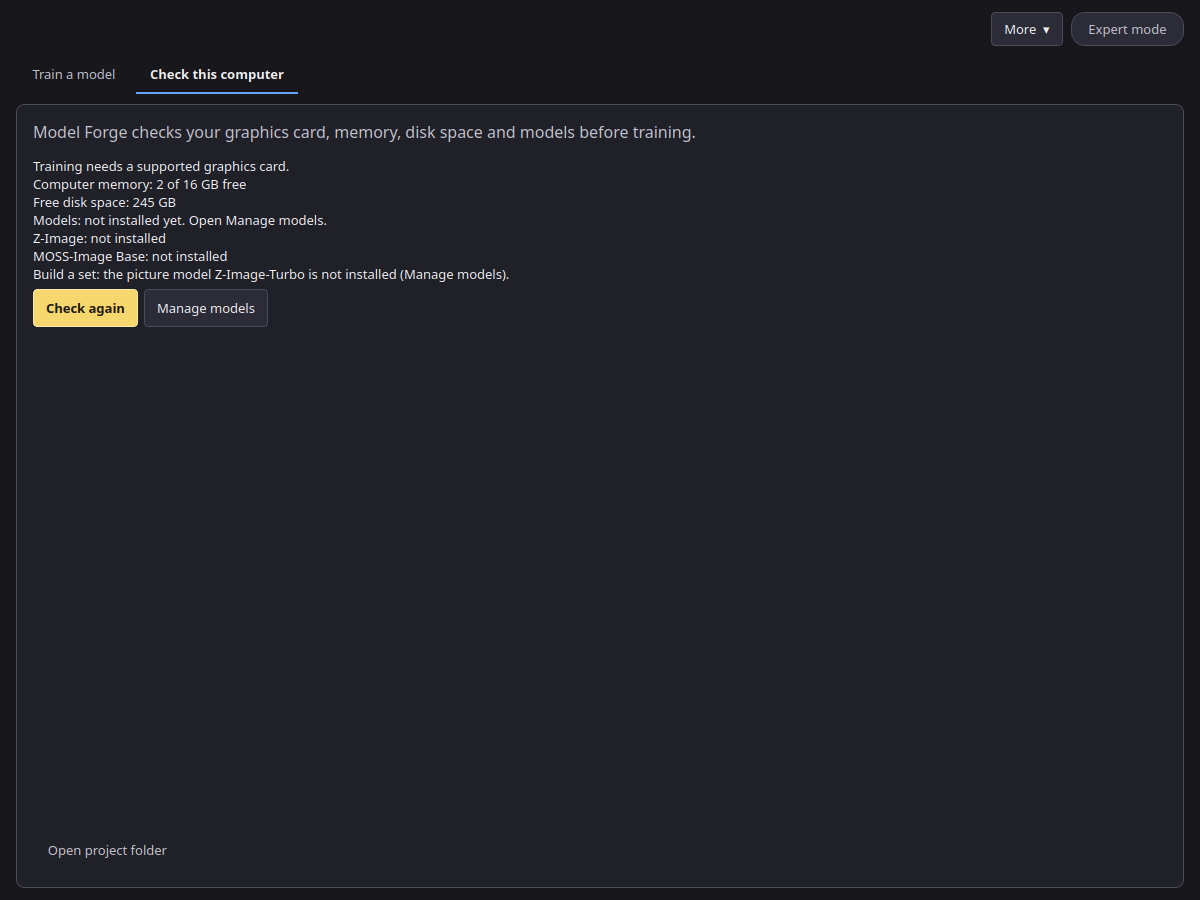
Open the Check this computer tab. It lists the graphics card, the computer memory, the free disk space and which models are missing. Press Manage models to download them (see Model download), then Check again.
Remove the app
Remove the app in Settings > Apps > Installed apps. The Start menu has no Uninstall shortcut. Your projects and downloaded models stay in place. To remove them as well, see Privacy.