Export
Step 6: Result
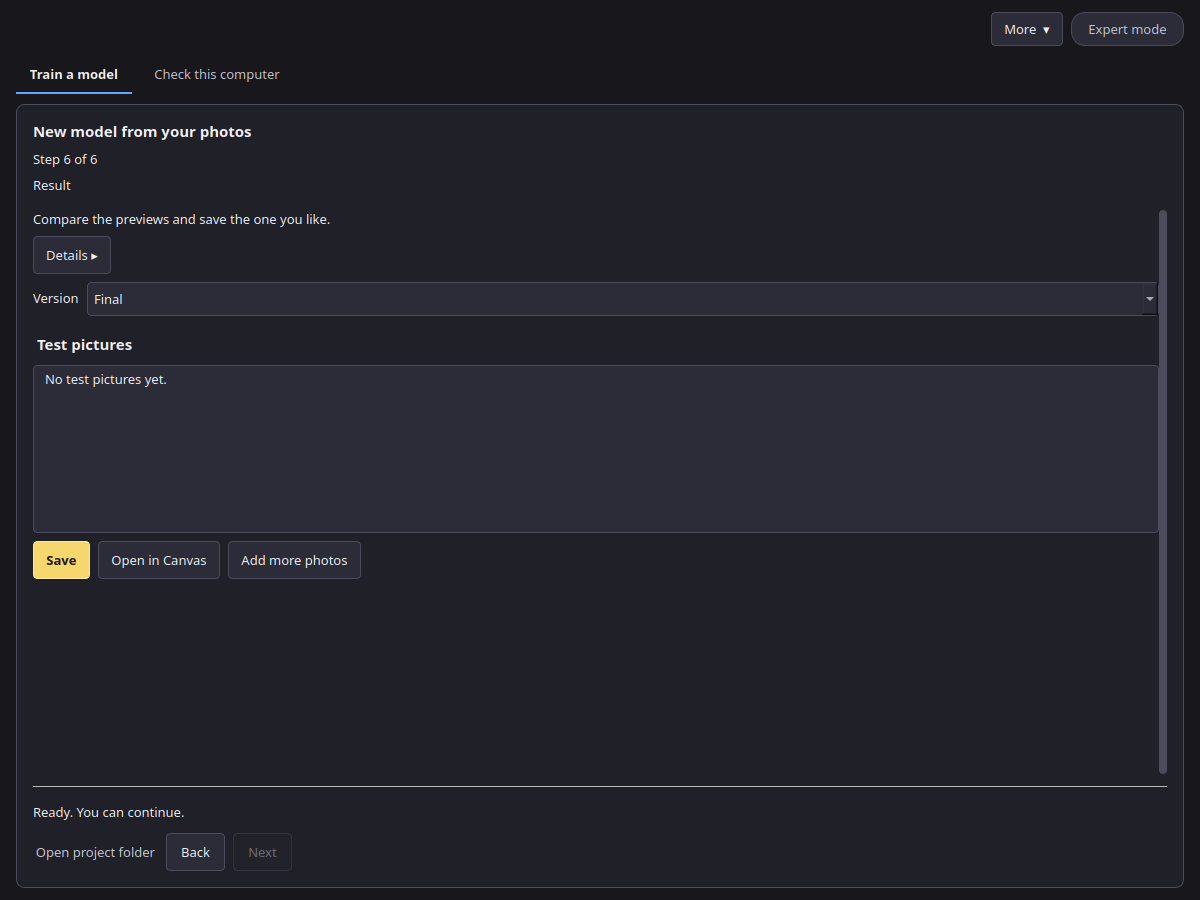
- Look at the test pictures and choose a Version. A later version is not always better; pick the one you like.
- Save writes one
.safetensorsfile with its description file (voxprint-model.json), licence and notice. You can keep it or share it under the base model's licence. - Open in Canvas adds it to your models. In Canvas, choose the LoRA, type the trigger word in your prompt, and set the strength (0.8 is a good start).
To improve a model later, press Add more photos on this step. Training continues from the model with the new photos and a share of the old ones.
Where the files go
- LoRAs sent with Open in Canvas:
%LOCALAPPDATA%\VOXPrint AI Suite\models\user-models\lora\<name>\. - Projects:
%LOCALAPPDATA%\VOXPrint AI Suite\state\model-forge\lora\. More → Open project… opens an earlier project; Open project folder shows its photos, versions and test pictures. - Deleting a project folder removes its photos, descriptions and versions. Saved LoRA files elsewhere are not affected.
What the model file contains
The names you entered, the trigger word, the consent and 18+ confirmations, how consent was given (verbal or file), the adult-content label, the optional provenance note, whether a release is attached and its fingerprint, and the training settings. It contains no photos, file paths, user name, computer details or photo metadata.
Command line
The same export is available from the command line:
voxprint-forge-cli lora export --project <project folder> [--checkpoint <step>] [--out <file.safetensors>] [--install-to-mdl]
--install-to-mdl also adds the LoRA to your models for Canvas. See the CLI reference.